How to avoid phishing when an email looks real
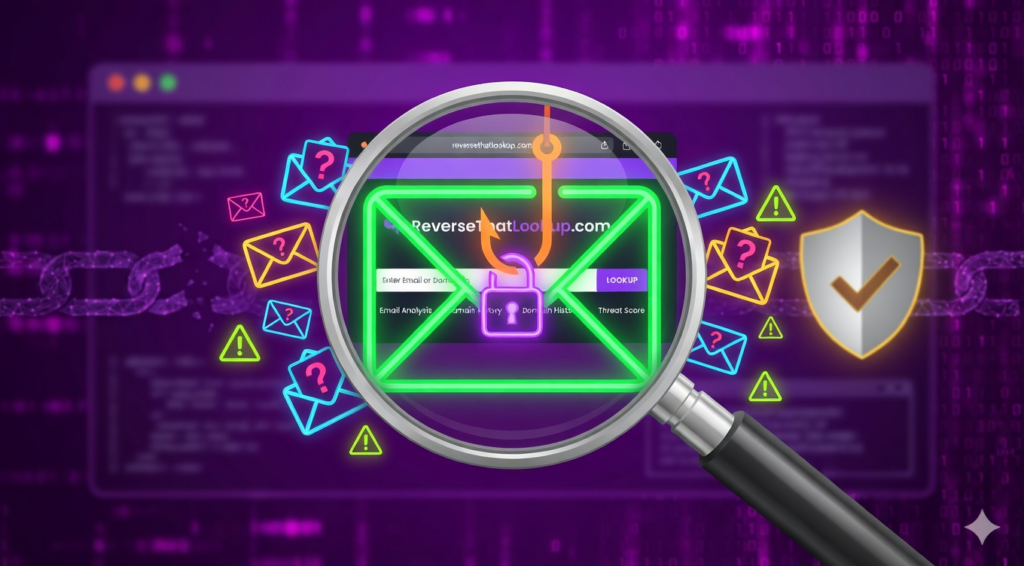
The safest approach starts with pausing before you click: inspect the sender, ignore pressure, open accounts through official apps or typed URLs, never share passwords or codes by email, and report suspicious messages. If you already clicked, change passwords from a safe device and watch affected accounts.
Slow the message down
Phishing works because it asks for speed. The email says your bank account will close, your package failed, your payroll login expired, or your tax refund needs one more form. The goal is to make clicking feel easier than thinking.
Your first defense is a small delay. Do not answer inside the message. Do not use the button it provides. If the claim matters, leave the email and go to the company’s website or app yourself.
A fake notice can look polished. Logos, colors, employee names, and legal footers are easy to copy. Pressure is harder to justify, especially when the sender asks for passwords, payment details, Social Security numbers, gift cards, login codes, or a downloaded file.
How to identify phishing emails before you click
Learning how to identify phishing emails is mostly pattern recognition. The message may pretend to be routine, but the details often pull in different directions: a sender domain that is one letter off, a greeting that does not fit the account, or a link that points somewhere unrelated.
Look at the full email address, not just the display name. “Security Team” means little if the address behind it uses a strange domain, a free mailbox, or an extra word added before the real brand name.
Hover over links on desktop, or press and hold carefully on mobile if your device previews links safely. The visible button may say “review account,” while the actual URL points to a domain you do not recognize. When in doubt, type the known address yourself.
| Email detail | What to check | Safer response |
|---|---|---|
| Sender name | Open the full address and domain | Compare it with old legitimate messages from the company |
| Urgent deadline | Ask whether the company would demand action by email | Log in through the official app or typed website |
| Link button | Preview the destination before opening | Ignore the link and navigate directly |
| Attachment | Question whether you expected that file | Call the sender using a known number before opening |
| Request for secrets | Notice passwords, PINs, codes, or account numbers | Do not reply; report the message |
Read the URL, not the button text
Buttons are designed to make decisions feel simple. That is useful in a real account notice and dangerous in a fake one. The text on the button can say anything; the destination is what matters.
Watch for domains that add extra words before or after the brand, swap similar-looking letters, use odd endings, or hide the real destination behind a short link. A fake payment notice might use a domain that contains the brand name but is not controlled by that brand.
Subdomains can confuse people, too. In a real URL, the registered domain sits just before the ending such as .com, .org, or .gov. If the brand name appears earlier in a long string but the main domain belongs to someone else, do not sign in there.
Mobile screens make this harder because they show less of the address. If you cannot clearly see where a link goes, skip the link and open the app yourself.
Verify through a clean path
A clean path is a route the email did not give you. Open your bank app, type the shipping company’s address, use a saved bookmark, or call a number from the back of your card. That one habit defeats many phishing links.
Be especially careful with password resets and account-lock warnings. If the message is real, the alert should also appear after you sign in through the official site. If it does not, the email may have been bait.
For banks, payroll portals, and health accounts, use the contact information already saved in your account or printed on official documents. A phone number inside the suspicious email is part of the message you are trying to verify.
For job, rental, marketplace, or dating messages, the sender may be a person rather than a company. If a stranger’s email includes a name, number, or location, a people search can help compare public identity clues, and a reverse phone lookup can help when the same person pushes you to text or call.
Common phishing setups you will see
The fake package message is one of the easiest to fall for because nearly everyone orders something. It says a delivery failed, a small fee is due, or an address must be confirmed. The link then asks for payment details or a login.
Bank and payment-app messages lean on fear. They mention suspicious activity, frozen transfers, or a pending charge. Instead of using the message, open the account yourself and check notifications there.
Workplace scams use authority. A message may pretend to be your boss, payroll department, help desk, or a vendor. If it asks for gift cards, wire transfers, password resets, or file access outside the usual process, verify through a separate channel.
Tax and government impersonation emails often sound official, but real agencies do not need you to enter sensitive information through a surprise link. The Federal Trade Commission’s scam guidance is a useful reference when you are comparing a message against common fraud patterns.
Mobile phishing needs a different reflex
On a phone, a fake email can feel more believable because the screen hides details. Sender addresses are shorter, link previews are clumsier, and a tap can happen before you have time to inspect the page.
Slow down more on mobile than you would on a laptop. If a message asks you to sign in, pay a fee, download a document, or verify a code, wait until you can open the official app directly. That tiny delay is worth it.
Text messages and email often work together. A scammer may send a fake account alert by email, then follow up with a text that makes the same story feel confirmed. Matching pressure from two channels is still pressure, not proof.
Attachments deserve extra suspicion
A phishing email does not need a fake website to hurt you. Attachments can carry malware, macros, fake invoices, password-stealing pages, or files that push you to enable settings your computer would normally block.
Unexpected invoices, shared documents, voicemail files, shipping labels, and resume attachments are common lures. If you did not expect the file, confirm with the sender using a phone number or email thread you already trust.
Do not let curiosity make the decision. A message that says “see attached complaint” or “payment overdue” is designed to make opening the file feel urgent. That is the moment to pause.
Use account protections that reduce the damage
Good habits matter, but accounts also need guardrails. Use unique passwords, store them in a password manager, and turn on two-factor authentication for email, banking, cloud storage, and payment apps.
Authentication apps or hardware security keys are stronger than text-message codes, but any second factor is usually better than a password alone. Never share a one-time code with someone who contacted you, even if they claim to be support.
Keep devices updated so known security holes get patched. Phishing often starts with a message, but the damage can spread through old software, reused passwords, and accounts that never ask for a second proof.
What to do if you clicked
Do not panic-click more links trying to undo the first one. If you entered a password, change it from a different device or a browser session you trust. If that password was reused, change it everywhere else it appears.
If you downloaded a file, disconnect from the internet and run a full security scan. Work devices should go to IT quickly because one infected account can expose shared systems, not just your own inbox.
Check bank, payment, email, and cloud accounts for unfamiliar logins, forwarding rules, new recovery emails, and transactions you do not recognize. Preserve the phishing message, screenshots, sender address, URLs, and payment details if money or account access was involved.
If you typed in a credit card number, call the card issuer using the number on the card or in the official app. If you entered a Social Security number or other identity information, consider fraud alerts, credit monitoring, and account-specific recovery steps. The right response depends on what you gave away.
If the email targeted a workplace account, do not hide it out of embarrassment. Security teams would rather know early, before a stolen login turns into a vendor payment change, mailbox forwarding rule, or shared-drive compromise.
How to report phishing emails
Knowing how to report phishing emails helps email providers, companies, and investigators connect related scams. Use your email app’s report-phishing or report-spam option first, then forward or submit the message where the impersonated company asks users to report abuse.
If money was stolen, an account was taken over, or the message is part of a broader internet crime, file with the FBI’s Internet Crime Complaint Center at IC3.gov. The FBI’s 2022 IC3 release reported phishing among major complaint categories and noted reported losses tied to phishing schemes, which is why reporting matters beyond your own inbox.
You can also check patterns at the BBB Scam Tracker when you want to see whether similar messages are circulating. Do not post private account numbers, full email headers with personal tokens, or sensitive documents in public reports.
Daily inbox habits that keep you safer
Normal inbox use needs a repeatable routine. Read the sender. Read the ask. Leave the email before logging in. Treat codes and passwords as secrets no legitimate support agent needs from you.
Here is the five-second test: Who sent it, what do they want, and what happens if I ignore the link and go directly to the source? If the message gets less convincing after those questions, do not click.
Bookmarks help more than people expect. Save the real login pages for banks, email, benefits, shipping accounts, and payment apps, then use those bookmarks instead of inbox links. That small setup removes a decision point when a convincing fake arrives on a busy day.
Shared family inboxes need extra care. If an older parent, teenager, or roommate uses the same account for bills and shopping, set ground rules for payment requests, document attachments, and password reset messages. One rushed click can affect everyone who depends on that mailbox.
Frequently Asked Questions
How to avoid phishing?
Pause before clicking, inspect the full sender address, avoid email links for account logins, and open the company’s app or website yourself. Never share passwords, PINs, payment details, or one-time codes by email. Report suspicious messages instead of replying to them.
How to avoid phishing scams?
Treat urgency, secrecy, and requests for sensitive information as warning signs. Verify money requests, job offers, invoices, and account alerts through a separate channel. Use unique passwords and two-factor authentication so one mistake does not expose every account you own.
How to avoid phishing emails?
Use your email provider’s spam and phishing-report tools, preview links before opening them, and be cautious with unexpected attachments. If an email claims a serious account problem, leave the message and sign in through the official website or app to check.
How to avoid phishing attacks?
Combine habits with technical protections: password manager, unique passwords, two-factor authentication, software updates, and careful reporting. For workplaces, confirm payment or credential requests through approved channels, especially when a message claims to come from an executive, vendor, or help desk.


